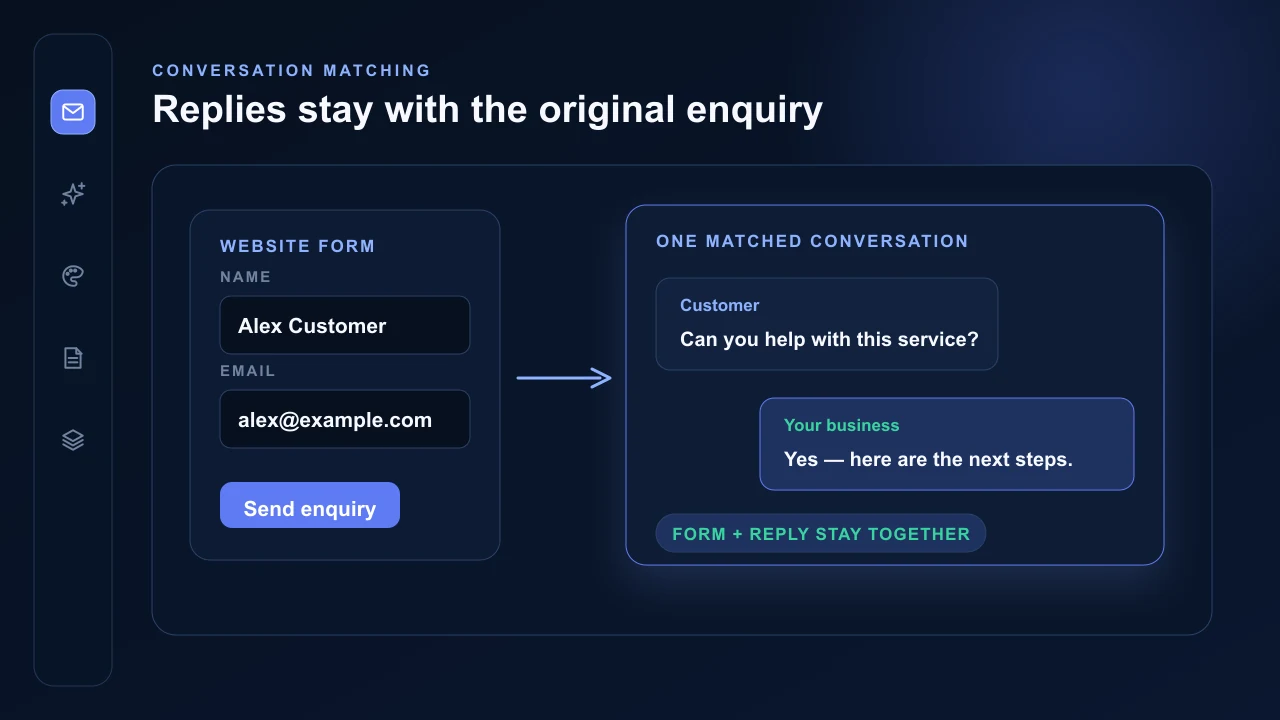
Contact forms and the lead inbox are part of AVSBL. A separate form service is not required for a standard website enquiry workflow.
Add the contact section
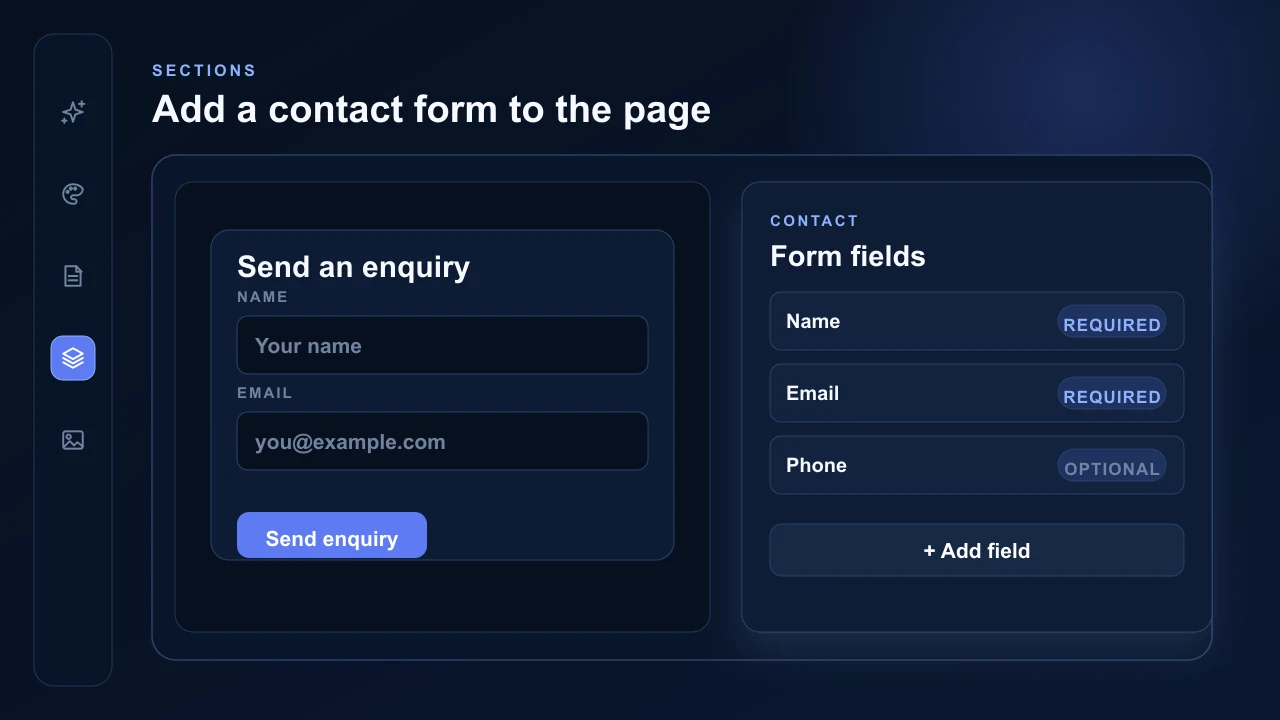
Open Sections, add Contact and choose the layout. Configure the visible contact content and the available form-field labels, field types and required settings while viewing the result directly in the builder.
AVSBL publishes the form with the live site and validates submissions against the correct website and form. The configured contact email receives the initial enquiry notification.
Work from the lead inbox
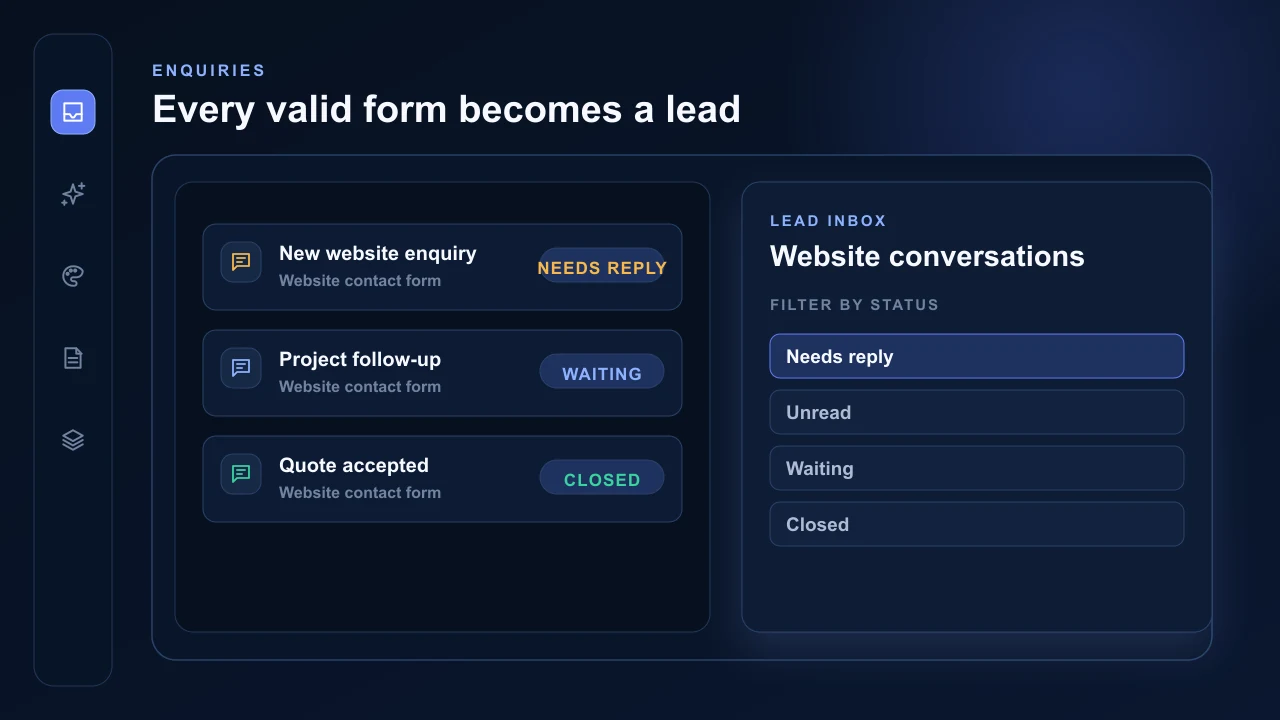
Each valid submission becomes a lead conversation connected to the website. The inbox keeps the original enquiry and later matched replies together.
Conversation states include Needs Reply, Unread, Waiting and Closed. Use them to separate new enquiries, customer replies, conversations waiting on the customer and completed work.
Keep replies attached to the enquiry
AVSBL can send the initial notification without a connected mailbox. Connect Microsoft or Zoho when later replies should be sent from and matched through the business mailbox.
Only messages matched to an existing AVSBL conversation are imported. The general mailbox is not copied into AVSBL.